


Up next:
How to Reinstate a Suspended Google Business Profile

Creating a new Google Business Profile is an essential step in establishing an online presence for your business. It helps customers find your business on Google Search and Google Maps, increasing visibility and driving traffic. Furthermore, it plays a crucial role in local SEO, allowing your business to show up in location-based searches.
This guide will walk you through each step in detail on how to add a new business profile to Google Business Profile and optimize it for better search visibility.
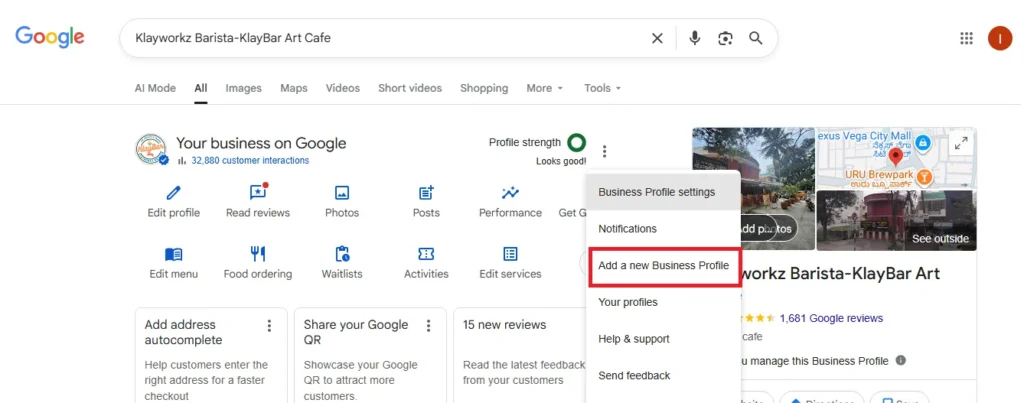
Before adding a new business profile, you need to sign in to Google Business Profile.
How to Sign in:
If you don’t have a Google account, you will need to create one before proceeding. Having a Google account is essential for accessing Google Ads, Google Analytics, and other Google services for your business.
Once you’re logged in, follow these steps to create a new business profile:
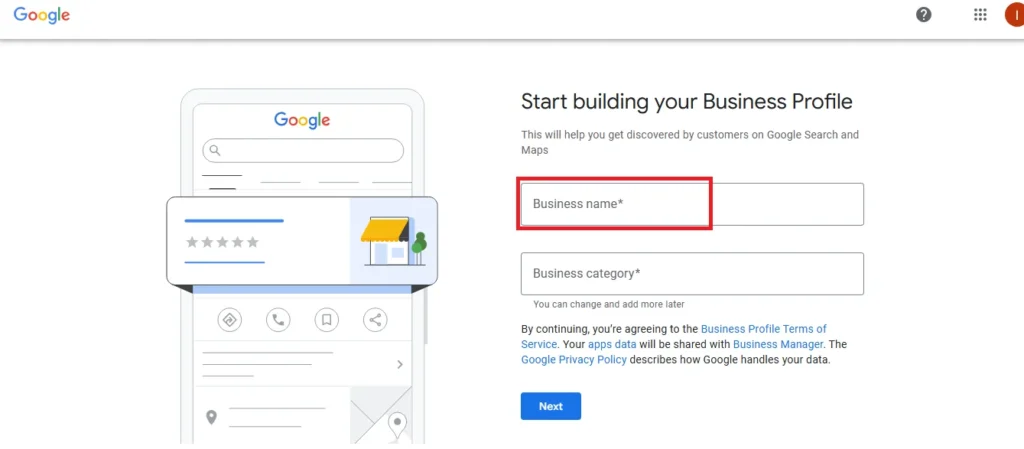
Business Name:
SEO Tip: Use a name that incorporates your business type or location, if applicable, as this can help improve your local SEO. For example, “John’s Bakery in Downtown”.
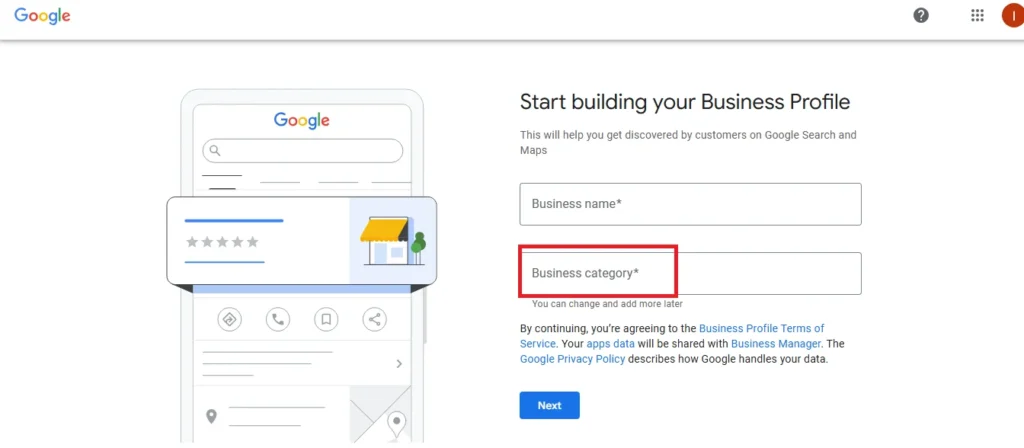
Business Category:
SEO Tip: Select the most specific category that reflects your business to help Google rank you higher in local search results. For example, if you own a coffee shop, select “Coffee Shop” rather than just “Restaurant”.
Google will ask if you have a physical location where customers can visit your business. If so, follow these instructions:
Add Physical Location:
Service Area Businesses:
Google will prompt you to enter your business phone number and website.
Phone Number:
Website URL:
If you don’t have a website, you can leave this field blank, but it’s highly recommended to have a website to build credibility and improve your SEO marketing.
Google requires verification to ensure that you are the rightful owner or manager of the business. There are several ways to verify your business:
Postcard by Mail:
Phone or Email Verification:
Instant Verification:
If your business is already verified through Google Search Console, you might be able to verify your business instantly.
Once your business is verified, it’s important to optimize your Google Business Profile to make it more visible and attractive to potential customers.
Add Photos:
Complete Business Information:
Encourage Customer Reviews:
SEO Tip: Respond to reviews to show engagement and boost your online reputation management.
Once your Google Business Profile is live, make sure to:
Adding a new Google Business Profile is an essential step for businesses looking to enhance their local SEO and digital marketing strategy. By following the steps above and optimizing your profile, you can improve visibility, attract more customers, and increase sales through Google Search and Google Maps.
For businesses seeking to enhance their SEO marketing tools, local SEO services, or website SEO, regular profile updates and engagement are key to long-term success.
The “Your Profile” section in Google Business Profile is where you can manage and view all the business profiles you own or have access to. It provides an organized view of all your profiles, along with their verification status and other essential details.
What Is Displayed in the “Your Profile” Section?
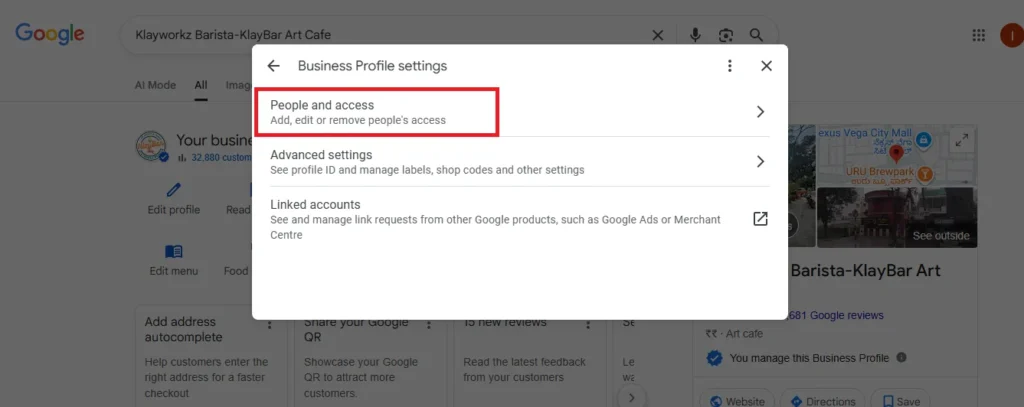
When you click on “Your Profile”, you’ll see a list of all the business profiles under your account. The details shown include:
This section is vital for businesses that manage multiple locations or different businesses. It allows you to:
Efficiency: Quickly managing your business profiles and ensuring they’re up to date is vital for local SEO, SEO marketing, and online reputation management.
This section is a powerful tool for managing multiple Google Business Profiles. By keeping track of your profile status and ensuring your profiles are complete and verified, you enhance your digital marketing strategy and local SEO efforts.
Below the NMX icons, you’ll find a carousel displaying key Google CTAs designed to help improve your Google Business Profile. These options may include:
Complete your profile
Add update
Set up booking
Add directions to your website
Add exterior photo
Create on offer
Add a map to your website
This option lets you embed a map that highlights amenities such as parking or accessible entrances. Adding this feature enhances customer experience and provides vital information, contributing to local digital marketing and improving customer satisfaction.
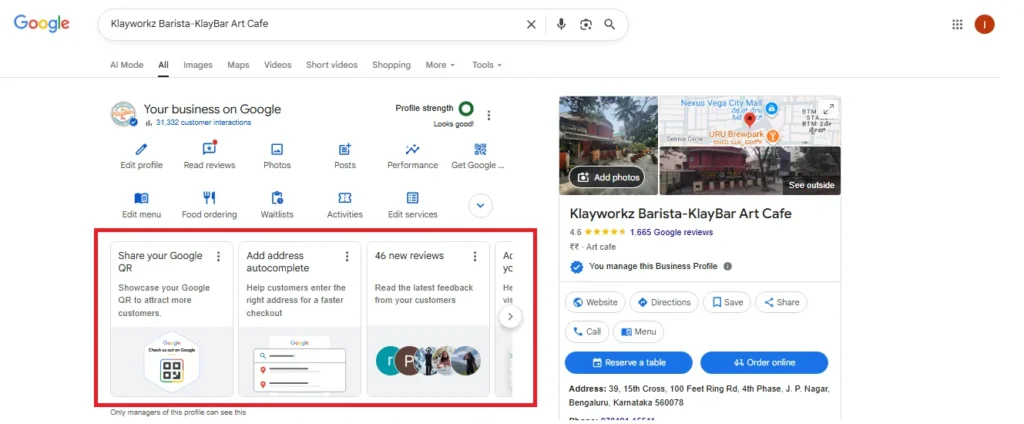
It’s important to regularly monitor these Google CTAs and notifications, as they provide valuable insights into areas of your profile that may need attention. They also highlight features Google is promoting or seeking to increase adoption of, helping you stay aligned with the latest tools and best practices.
If you’re managing your profile through the Google Maps app, just tap the “Business” icon located at the bottom navigation bar to access your profile tools.
When you tap on the icon, a list of all the Google Business Profiles you manage will appear.
Select the profile you wish to update, and you’ll be taken to the New Merchant Experience (NMX), which offers a similar interface and functionality to the desktop version for easy editing and management.
Efficiently Update Your Google Business Profiles with Bulk Edit
You can manage bulk editing through the Google Business Profile (GBP) dashboard at business.google.com
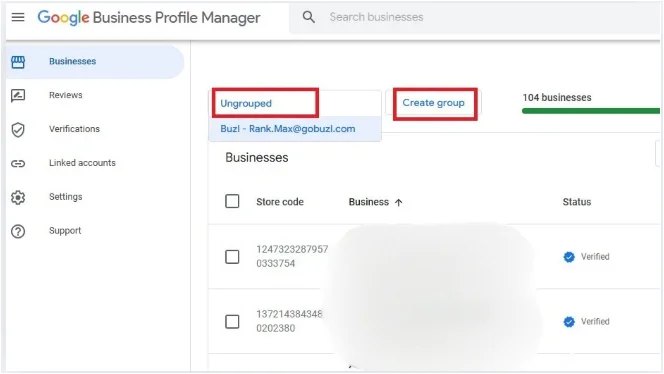
To use this feature, your business profiles must be organized into a location group, and each profile should have a unique store code. Bulk editing allows you to upload updates in bulk, making it significantly more efficient when updating information for multiple locations at once.
Up next:
How to Reinstate a Suspended Google Business Profile